Set Volume Auto-Expansion
This section describes how to set volume auto-expansion.
Volume capacity auto-expansion refers to the system automatically expanding the volume capacity when the remaining space of the volume falls below a threshold.
Prerequisites
-
The KubeSphere Storage extension must be installed and enabled on the KubeSphere platform.
-
You need to join a cluster and have the Storage Class Management permission in the cluster. For more information, see Cluster Members and Cluster Roles.
-
Ensure that the backend storage system supports volume expansion and that the storage class has the volume expansion feature enabled. For more information, see Enable and Disable Volume Operations.
Steps
-
Log in to the KubeSphere web console with a user who has Storage Class Management permissions and enter your cluster.
-
Click Storage > Storage Classes in the left navigation pane.
-
In the storage class list, click the name of a storage class to open its details page.
-
On the storage class details page, click Operation > Set Auto-Expansion.
-
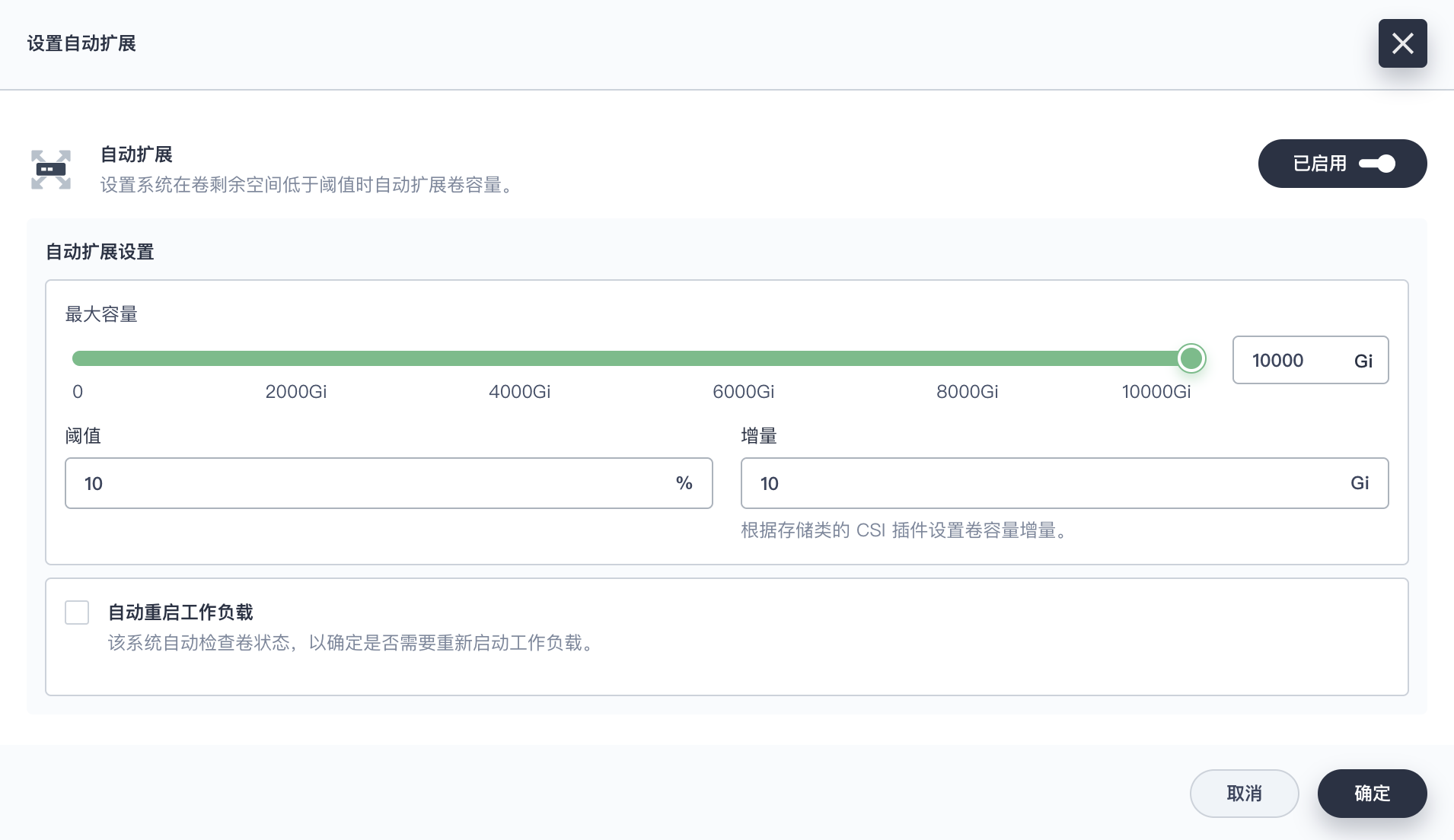
In the Set Auto-Expansion dialog box, click the Disabled button on the right side of the page to enable the auto-expansion feature.
Note If you need to disable the auto-expansion feature, click Enabled on the right side of the page.
-
In the Auto-Expansion settings area, set the maximum capacity, threshold, and increment for expansion.
-
(Optional) If you need the system to automatically check the volume status and restart the workload, select Auto-Restart Workload.
-
After the settings are complete, click OK.