Install Extensions
This section describes how to install extensions.
For information on how to access, configure, and use each extension, refer to Extensions User Guide.
Prerequisites
You need to have the platform-admin role in the KubeSphere platform. For more information, refer to Users and Platform Roles.
Installation Steps
-
Log in to the KubeSphere web console as a user with the platform-admin role.
-
Click Extensions Center and search for the extension you want to install.
-
Click the extension name, then click Install to go to the extension installation page.
-
On the Version Selection tab of the extension installation dialog, select the version number of the extension and install all required extensions (if any). Click Next.
Note During the installation check, the system will identify if the extension has any dependencies. Dependencies are divided into required extensions and optional extensions.
If the status of a required extension is Not Ready, you need to install the correct version of the required extension first to ensure the normal use of the extension. Optional extensions will not affect the installation of the extension.
-
On the Extension Configuration tab, enter the configuration you need in the middle Custom Configuration box. After reviewing the Final Configuration, click Next.
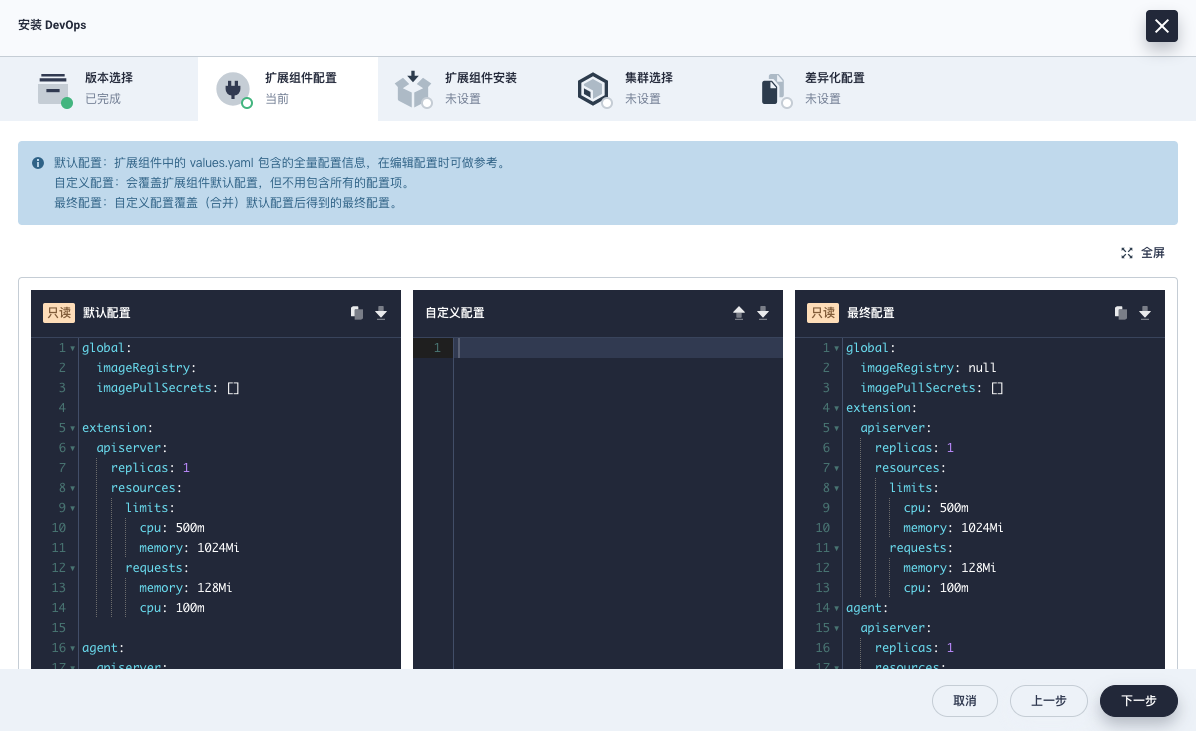
-
Click the
 in the upper right corner to view the configuration information in full screen.
 -
Click
 to upload a custom configuration file.
 -
Click
 to copy the configuration information.
 -
Click
 to download the configuration file.
-
-
On the Extension Installation tab, click Start Installation to begin installing the extension.
-
After the installation is complete, click Next.
-
On the Cluster Selection tab, select clusters by name or identifier (multiple clusters can be selected) to enable the extension in the target clusters.
-
On the Differentiated Configuration tab, click
 to edit the Agent configuration for a cluster. You can also use the initial default configuration without modification. Click OK to start installing the cluster Agent and wait for completion.
After installation is complete, the extension is enabled by default.
Note Some extensions do not require the installation of a cluster Agent (i.e., there are no Cluster Selection and Differentiated Configuration tabs). Please refer to the actual page.